Setup a Cluster
Cluster on DigitalOcean
In this section we show you how to use the digitalocean terraform module to setup your own infrastructure on digital ocean provider.
Setup Project
You can use our digitalocean template to create a repository. Click on the Use this template link on the repo.

Name the module and simply clone the repository down.
Let’s begin by cloning our repository we created using the template.
git clone git@github.com:<your-organization>/<your-repo>.gitCluster Bootstrap
Once you’ve cloned down the repository simply replace the cluster_name with the desired name for your cluster. You can also update the node_size and the size parameter in the cluster_topology based on the value you wish to use from list of slugs provided by digitalocean.
Once you’ve updated the values create a .auto.tfvars and add your tokens.
do_token = <your digital ocean api token>
instellar_auth_token = <your instellar auth token>
You can get the instellar_auth_token by signing up and heading over to the Credentials page on instellar.
SSH Key
This section assumes you already know how to generate the ssh-key. If you don’t know how to do this I recommend this post. To add the ssh-key to digital ocean. Head to the Settings area.
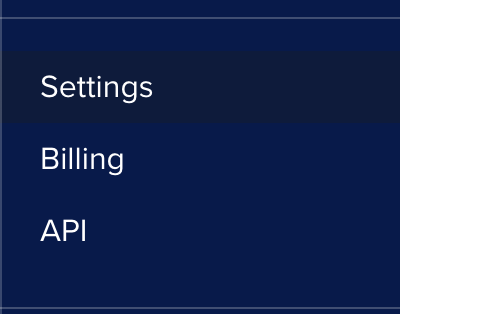
Find the Security tab.

Click on the Add SSH Key button.

Copy your public key from the command line and paste it in the SSH Key content area. Give it a name and click Add SSH Key.
Once add the ssh key you can copy the finger print and use it in your main.tf.
API Token
Let’s look at how we can retrieve the API token to be used with digital ocean on terraform cloud.
Head over to the API section on the main navigation.
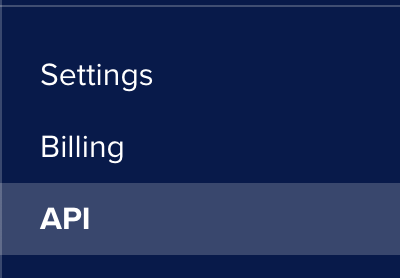
You’ll see the personal access token area. Click on the Generate New Token button.

Give your token a name. I suggest naming it with your cluster name and prefix it with terraform. So you know this token is being utilized by terraform.
For expiration you can use 90 days or longer. Do remember to change this token in terraform cloud.
Once you’ve entered the name and chosen the expiration time for the token click Generate Token.
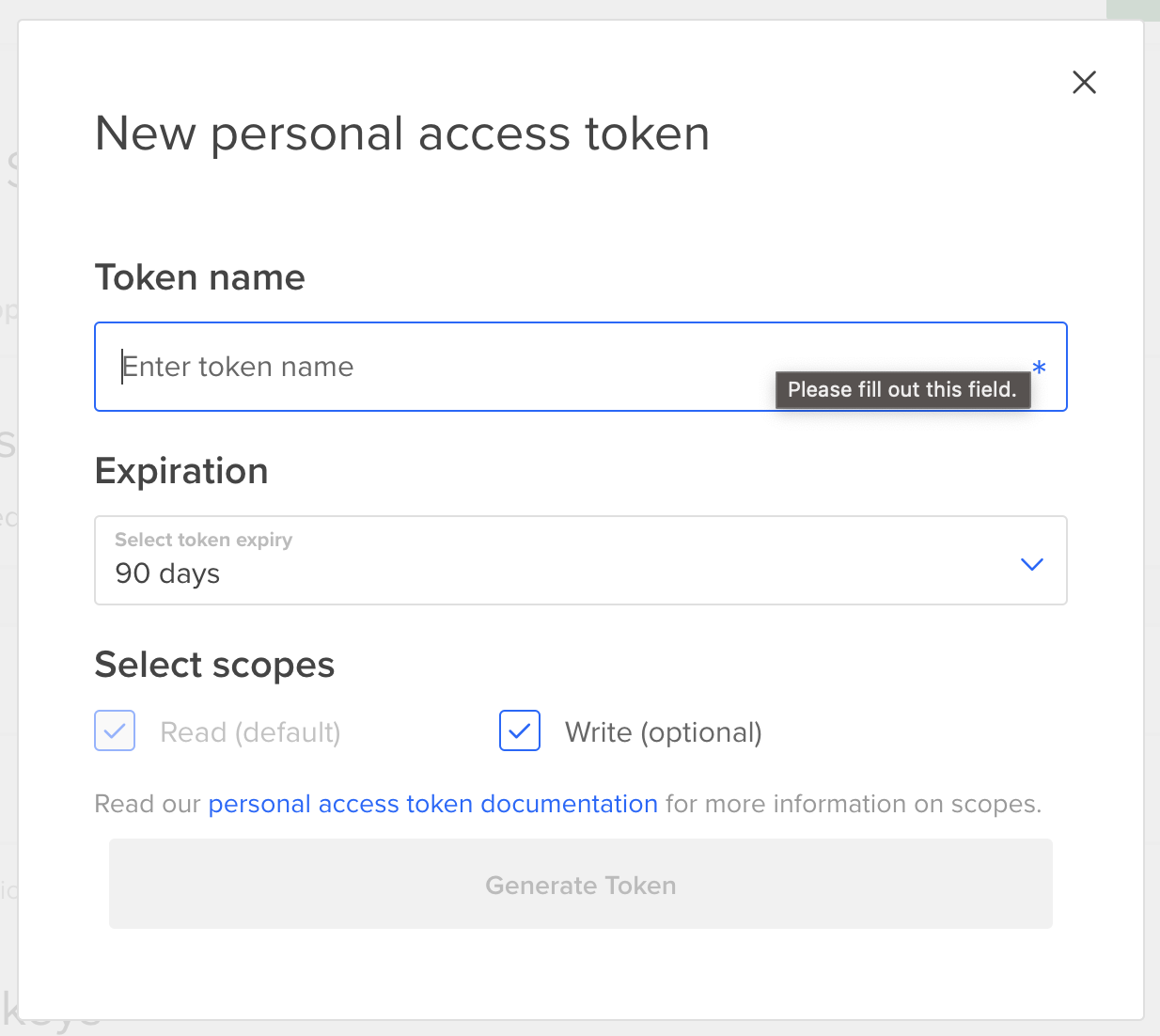
You’ll get to see the token once. Copy it and either use it in your .auto.tfvars or your terraform cloud.
Running Locally via CLI
Sensitive Token
The hcloud_token variable should not be checked into your code repository.
The do_token variable should not be checked into your code repository. If you’re planning on running terraform locally, you can create a .auto.tfvars file and add the variable there. This file will only exist locally on your machine and will not be checked into your github repo.
do_token = "<your-do-token>"If you use the template above the .auto.tfvars is automatically ignored.
Once all the configuration files are in place simply run:
terraform init
terraform plan
terraform apply